

Compendiums#
A Compendium is the project-wide database behind your dialogue Scripts. It holds Actors, Variables, Commands, Conditions, and Scripts under identifiers you can use in dialogue text instead of direct Unity references.
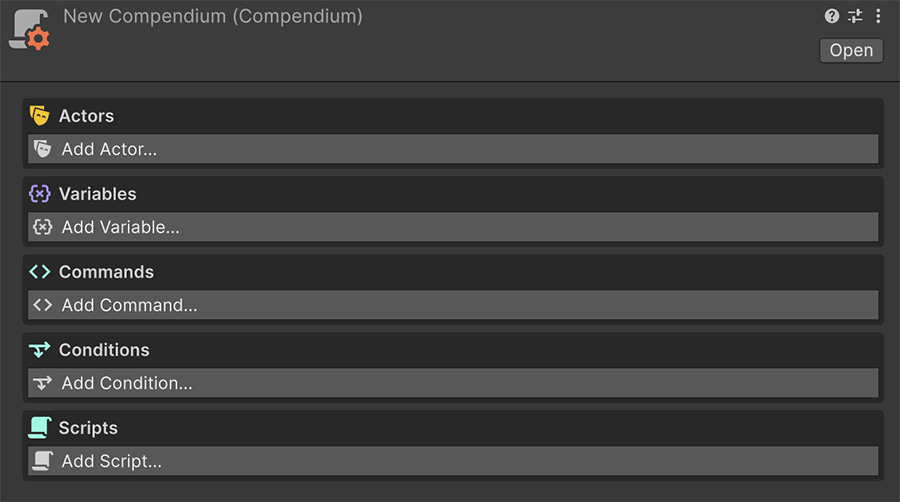
The Script names what it needs, and the Compendium resolves those names to data or behavior. That separation means you can:
- Change a name in one place. Rename a character in the Compendium and every line displays the new name because Scripts store only the identifier.
- Reuse definitions. Define a screen fade, skill check, or character once, then name it from any Script.
- Keep Scripts readable. Write with short identifiers while Unity references stay in the Compendium.
Group related definitions together
You can use any number of Compendiums. One database works for a small game; as the story grows, you might keep one per chapter or system.
Group entries where you'd expect to find them. Splitting related definitions across many assets makes their identifiers harder to track down.
One Compendium owns the Player Actor
A dedicated Compendium for the player character is a common starting point. Define an Actor with the identifier Player and the display name Deckard.
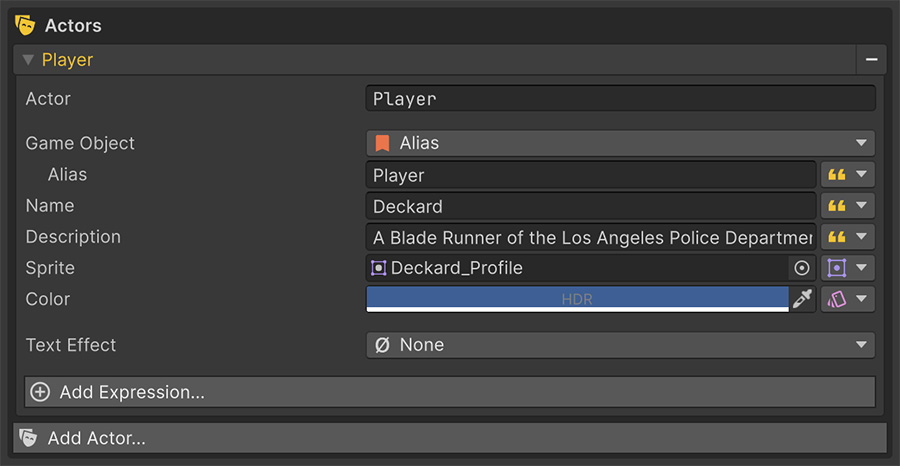
Because the name lives in the Compendium, it can come from player input, change with the active locale, or remain hidden until the character is introduced.
Every Script then writes the same line, and the UI shows Deckard:
Player: Replicants are like any other machine.Voiced lines and character-specific assets resolve through the same Actor.
Creating a Compendium#
- Right-click the destination folder in the Project window.
- Choose
Create→Game Creator→Dialogue→Compendium.
Unity creates the asset in that folder. You can move it anywhere under Assets afterward.
Actors#
An Actor is a character or entity that speaks or acts in the story. Its identifier resolves to a display name, description, portrait, color, and optional game object.
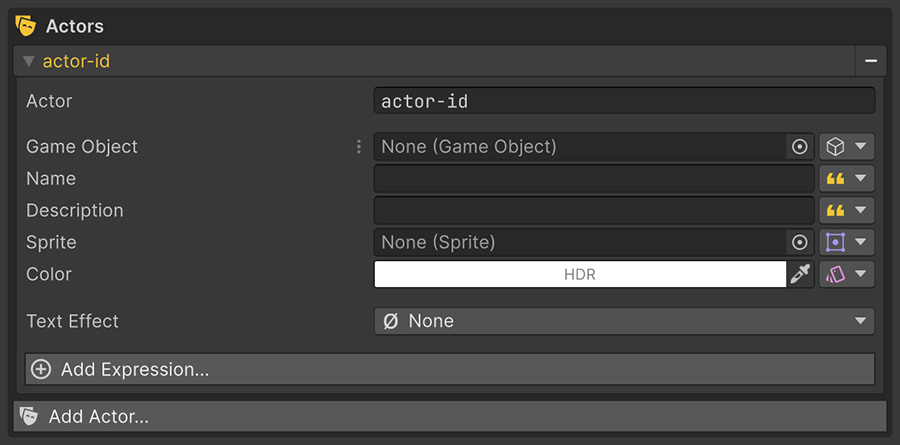
Add one with Add Actor….
| Field | Is |
|---|---|
| Actor | The identifier Scripts use. |
| Game Object | An optional reference to a GameObject in the scene. |
| Name | The display name. |
| Description | A description, for showing in the UI. |
| Sprite | The portrait or icon. |
| Color | A color for tinting the name, the dialogue box, or anything else. |
| Text Effect | How this character's text appears on screen. |
| Expressions | The states that change their appearance. See below. |
Text effects#
Text Effect changes how a line is revealed. Two ship by default:
- None — displays the complete text immediately.
- Typewriter — reveals one character at a time at the configured speed, with an optional sound.
The typewriter is characterization

A fast, high-pitched effect can make a character sound anxious. A slow, low-pitched effect can make the same line feel deliberate. Choose the speed and sound for each Actor to suit how they speak.
Expressions#
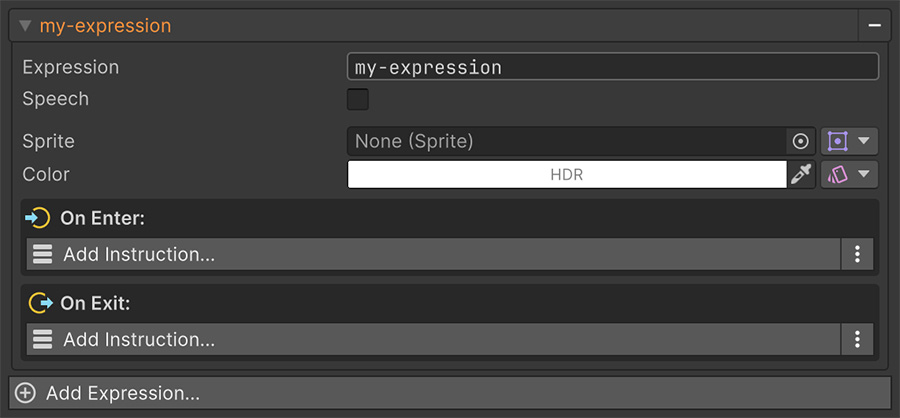
An Expression is an optional Actor state that changes its portrait, color, or speech element. Identifiers such as happy, angry, and sad let the Script select that state.
Expand an Actor and click Add Expression….
| Field | Is |
|---|---|
| Expression | The identifier Scripts use. |
| Speech | Which speech box shows lines that use this Expression: Default, or an Id that names another box. See below. |
| Sprite | The Sprite shown on lines that use this Expression. |
| Color | The Color used for tinting on lines that use this Expression. |
| On Enter | Instructions run when the Actor's line switches to this Expression. |
| On Exit | Instructions run when the Actor's next line drops this Expression, or the conversation ends. |
Append the Expression identifier to the Actor identifier with a period (.). An Expression applies only to the line that names it, so a line from the same Actor without one shows the Actor's plain look.
To hold a mood, repeat the Expression on each line. Consecutive lines from an Actor that name the same Expression share one active state: On Enter runs on the first of them, and On Exit runs when that Actor's next line names another Expression or none, or when the conversation ends. Lines from other Actors, narration, and commands in between don't interrupt it.
Repeat an Expression to keep it active
Maximus.Proud: My name is Maximus Decimus Meridius.
Maximus.Proud: Commander of the Armies of the North.
Maximus.Proud: General of the Felix Legions.
Maximus.Stoic: Servant to the true Emperor, Marcus Aurelius.
Maximus.Stoic: Father to a murdered son.
Maximus.Stoic: Husband to a murdered wife.
Maximus.Defiant: And I will have my vengeance...
Maximus: ...In this life or the next.
Proud runs its On Enter once and stays active for three lines. The fourth line runs Proud's On Exit and Stoic's On Enter. The last line names no Expression, so Defiant exits there and Maximus delivers it with his plain look.
Speech#
Each Expression can send its lines to a different speech box. For example, an angry Expression can replace the default speech bubble with a jagged red one.
Set Speech to Id and enter the identifier of the speech box you want. Default keeps the lines in the interface's default box.
An angry speech bubble
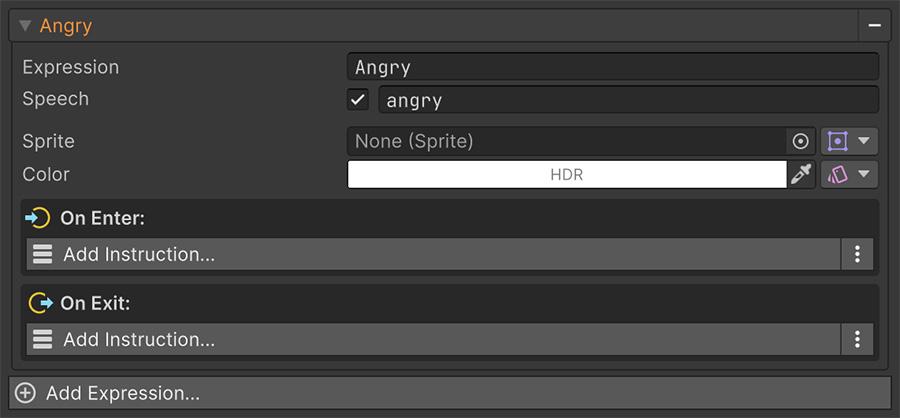
If the interface has a speech box with the ID angry, lines using this Expression appear in that box. Without a matching ID, they appear in the default speech box instead.
The User interface section explains how Unity UI and UI Toolkit give a speech box its ID.
Variables#
Variables let dialogue text read changing game data, such as player stats, quest states, or the name the player entered.
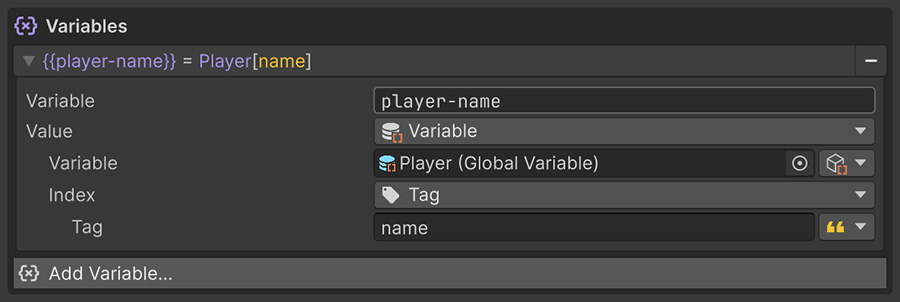
| Field | Is |
|---|---|
| Variable | The identifier Scripts use. |
| Value | The value it holds. |
Wrap the identifier in double curly braces ({{ and }}). Dialogue replaces the placeholder with the current value when the line plays.
Variables resolve when a line plays
The player types their name at the start of the game; it's stored in player-name, and every line that needs it reads it back:
Player: Hello! My name is {{player-name}}. Happy to meet you!Commands#
A Command is a named list of Instructions that any Script can run, such as a screen fade, sound effect, or character animation.
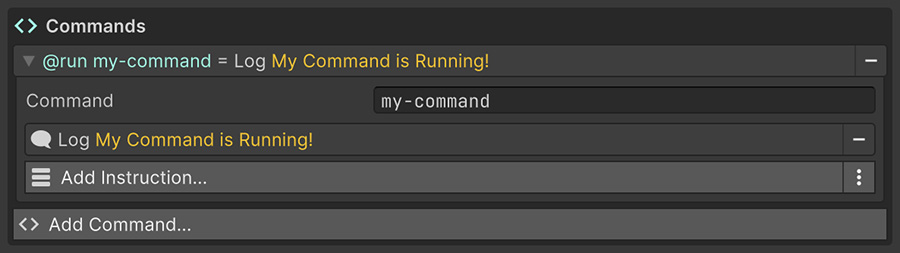
Add one with Add Command….
| Field | Is |
|---|---|
| Command | The identifier Scripts use. Letters, digits, hyphens (-) and underscores (_) only. |
| Instructions | What runs when it's called. |
Run one with @run and its identifier. The Script starts the Command and continues to the next line:
@run fade-inAdd await after @run and the Script waits for the Command to finish:
@run await fade-inUse @run for a sound cue that should overlap the next line. Use @run await when the next line depends on completion, such as after a screen fade.
Reuse commands across Scripts
Define repeated actions such as fade-in, fade-out, and shake-camera as Commands. This keeps their Instructions consistent across Scripts.
@run await fade-in
Player: And so, a new day begins.Conditions#
A Condition is a named set of checks that lets a Script branch on game state.
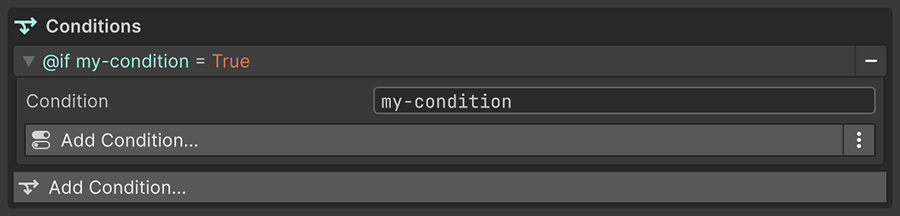
Add one with Add Condition….
| Field | Is |
|---|---|
| Condition | The identifier Scripts use. |
| List | The checks. All of them must pass for the Condition to be true. |
Scripts branch on them with three statements:
| Statement | Runs its block when |
|---|---|
@if condition-name |
The Condition is true. |
@or condition-name |
Every preceding @if and @or failed, and this Condition is true. Chain as many as you need. |
@else |
Every preceding @if and @or failed. |
A chain runs one branch
@if has-magic-sword
  Narrator: You unsheathe the glowing sword, and the creature recoils.

@or has-silver-dagger
  Narrator: You pull out the silver dagger; it's not ideal, but it might work.

@else
  Narrator: You are unarmed and stand defenseless before the creature.
has-magic-sword is checked first. If it's true, the first line plays and the rest of the block is skipped entirely. If not, has-silver-dagger is checked. If that fails too, @else catches it.
Exactly one branch ever runs.
Strength selects one of two branches
A player-strength-check-10 Condition that tests whether the player's Strength is at least 10 produces two outcomes:
@if player-strength-check-10
  Narrator: With great effort, you move the boulder aside.
@else
  Narrator: You try to move the boulder, but it's too heavy.
When you need a different threshold, metadata lets you pass the number into the same Condition. You can reuse the check without creating a separate Condition for each value.
Inside a @select, the same three statements decide which lines can be picked instead of which branch runs.
Scripts#
A Compendium can name other Script assets, which lets one Script run another.
Two reasons to do it:
- Reuse. Write a sequence once and run it from every Script that needs it.
- Navigation. Split a long conversation into smaller files you can follow and edit independently.
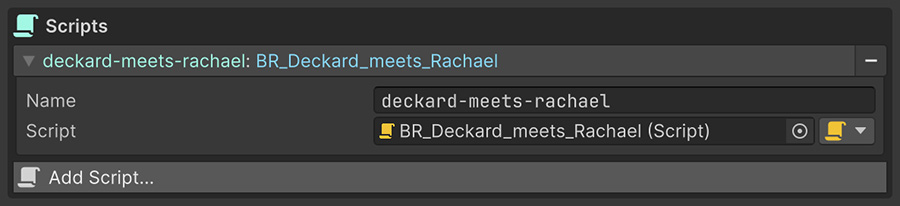
| Field | Is |
|---|---|
| Script | The identifier Scripts use. |
| Script Asset | The Script asset it points at. |
Call one with @script and its identifier. The referenced Script runs in full, then the original continues at its next line. Add a label after the identifier to start at that label; see @script.
Splitting a long conversation
Sherlock: Tell me everything you know about those clues, Watson.

@script explain-about-clues

Sherlock: Very well, I think that's enough. The murderer is...
The main Script pauses while explain-about-clues runs, then resumes with Sherlock's final line.
Where to go next#
- Scripts — create the narrative content that uses Compendium identifiers.
- Language syntax — reference Actors, Variables, Commands, Conditions, and Scripts from dialogue text.
- Dialogue component — control local and global Compendium precedence at runtime.