

Game Creator 3#
Summary
Game Creator 3 is a collection of standalone Unity modules for common gameplay systems. Install the modules your game needs, then connect them through the free Visual Script asset.
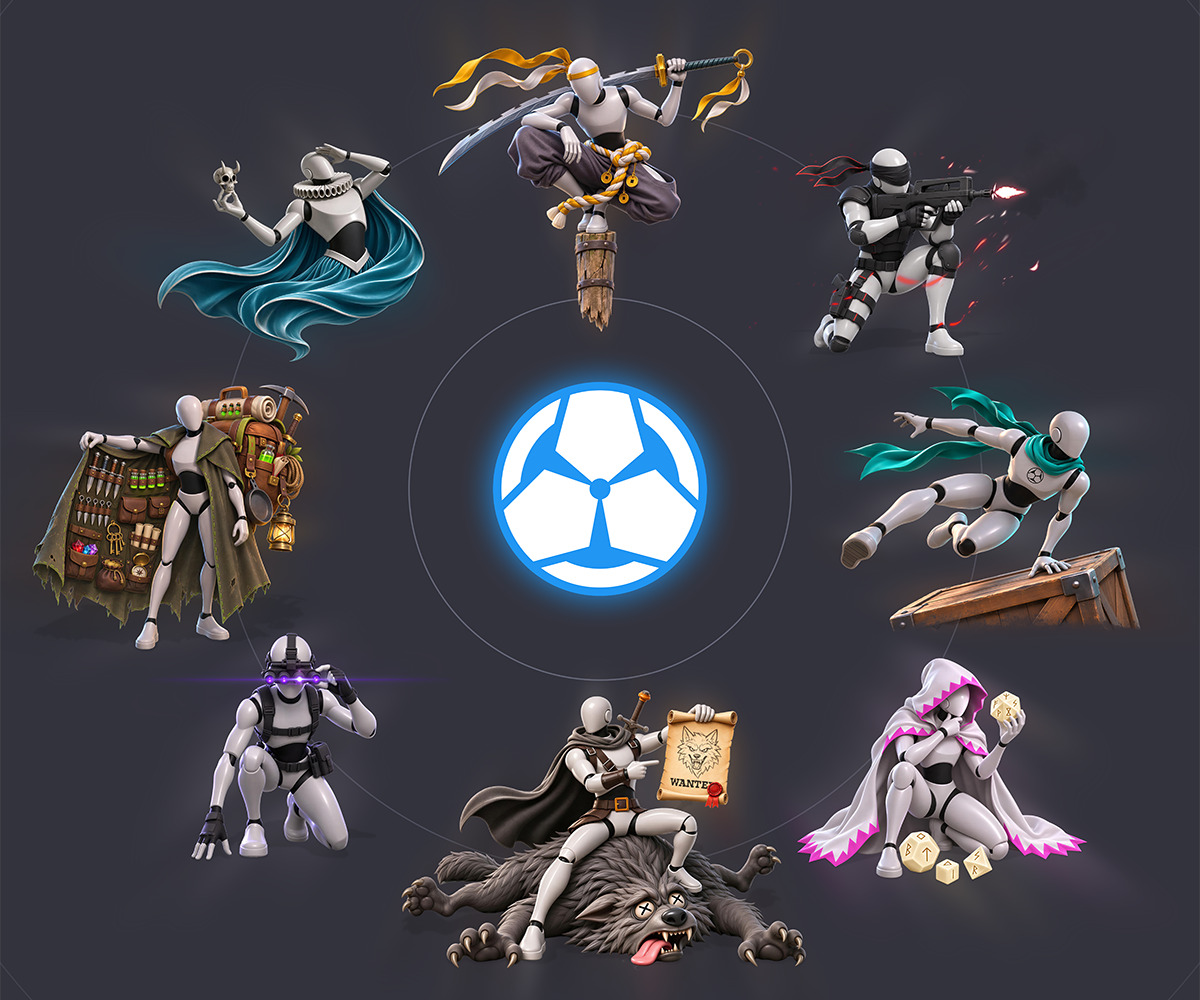
If you're coming from Game Creator 2, there's no shared core asset to install in this version. Most modules work independently and communicate through Visual Script, available from the Unity Asset Store.
Choose a module#
Start with the gameplay systems your game needs. Each module handles one system, and you can combine them through Visual Script as your project grows. Some modules depend on others; those dependencies are listed below.
- Characters — control and tune players and non-player characters.
- Inventory — define items, equipment, consumables, crafting, and dismantling.
- Dialogue — run conversations with branches, choices, and consequences.
- Stats — track attributes, health and mana Meters, experience, and levels.
- Quests — define quest objectives and track their progress.
- Behavior — build behavior for friendly and hostile characters.
- Perception — detect characters, sounds, and evidence in the environment.
- Shooter — build ranged combat with realistic or arcade behavior.
- Melee — build close-quarters combat with weapons or unarmed attacks.
- Traversal — move characters across obstacles by climbing, vaulting, and wall-running.
Three modules need Characters
Shooter, Melee, and Traversal act on a character, so they depend on the Characters module. The rest are independent.
Install modules#
You can get each module from the Unity Asset Store and install it through Unity's Package Manager.
Prerequisites#
Install a module's dependencies before the module itself.
- Install the free Visual Script asset before any Game Creator module.
- Check the module's Asset Store page for any additional dependencies before installation.
Installing a module#
- In Unity, open
Window→Package Manager. - Change the scope to
Packages→My Assets. - Search for the module by name, or for Game Creator 3.
- Select it and click Install.
- Wait for the progress bar to finish and for Unity to recompile. The module is then ready to use.
Updating a module#
When a new version is available, the Install button becomes Update. Clicking it removes the installed version and installs the new one.
Back up your project before updating
Back up your project and read the release notes before updating. A new version can change how something behaves, and a backup gives you a way to return to the previous version.
Getting started#
Whichever module you start with, you can follow the same path: learn the shared Visual Script concepts, try the examples, then build a feature with a guide.
Before you begin#
You'll need Visual Script installed and a working understanding of Events, Instructions, Conditions, and Triggers. If any of these are unfamiliar, start with the Visual Script manual; the modules build on those concepts.
Exploring the examples#
Every module includes example scenes you can open and run to see its systems in action. To import one:
- Open
Window→Package Manager. - Select the module in the list.
- Open the Samples tab.
- Click Import next to an example.
The examples progress from basic to advanced. Work through them in order because later examples may build on earlier ones.
Using the docs#
Once you've explored one module's documentation, you'll know where to look in the others:
| Section | Use it to |
|---|---|
| Manual pages | Learn which components and assets the module adds and how they interact. |
| Guides | Build a specific feature through an ordered procedure. |
| User Interface | Connect interface elements to the module's data. |
| Reference | Look up every generated Instruction, Condition, Trigger, and Signal. |
| Releases | Check changes between versions. |
Start with the manual pages, then try a guide or two with the editor open. You'll see how the pieces fit together as you build.
Report documentation errors#
If you find a mistake, notice something missing, or need a clearer explanation, email [email protected]. Include the page URL and a short description so the issue is easy to locate.
Where to go next#
- Visual Script manual — learn the Events, Instructions, Conditions, and Triggers shared by every module.
- Characters — configure the character controller required by combat and traversal modules.
- Melee — build close-quarters combat from Weapons, Skills, and Reactions.