# Scripts
A **Script** asset stores conversations, branches, and story events as text. You write the story in its narrative language, while visual scripting nodes handle the game behavior behind it.
!!! tip "Text works with version control"
Because Script content is text, you can compare revisions and review changes in a pull request. Store it in [Git](https://git-scm.com/) with the rest of the project so writers can review concurrent changes.
A single Script works for a short story. Split longer stories by character or chapter when one file becomes difficult to navigate, but avoid fragments so small that following the conversation requires constant file changes.
## Creating a Script
1. Right-click the destination folder in the Project window.
2. Choose `Create` → `Game Creator` → `Dialogue` → `Script`.
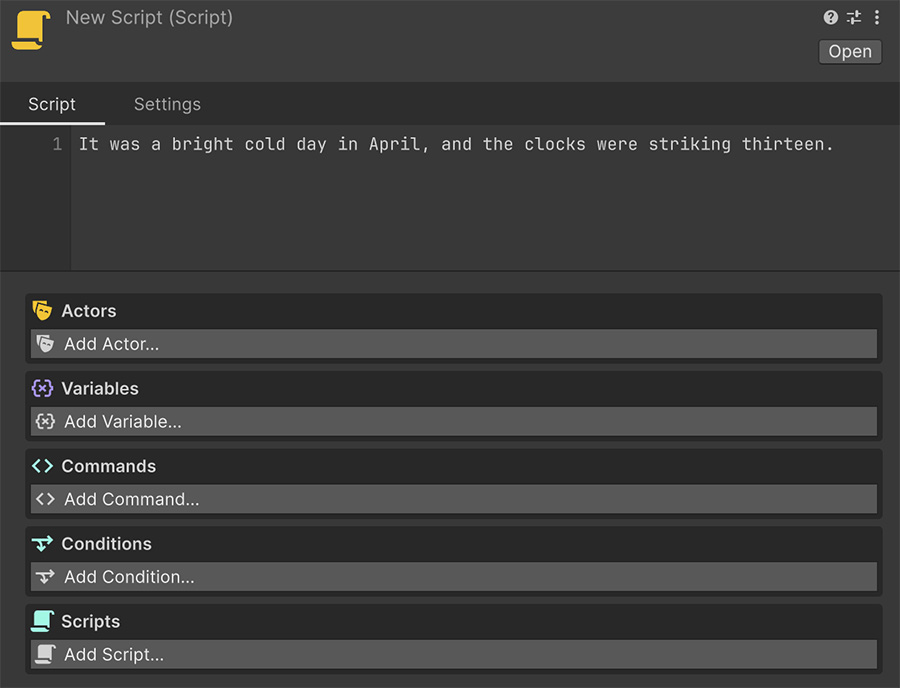
Unity creates the asset in that folder. You can move it anywhere under `Assets` afterward.
## Configuring a Script
The Inspector separates content from runtime settings:
| Tab | Contains |
| :--- | :--- |
| **Script** | Dialogue text and a local Compendium for definitions used only by this asset. |
| **Settings** | Localization, voiced lines, and the runtime behavior of text and choices. |
### Text area
Write your conversation in the text area on the **Script** tab.
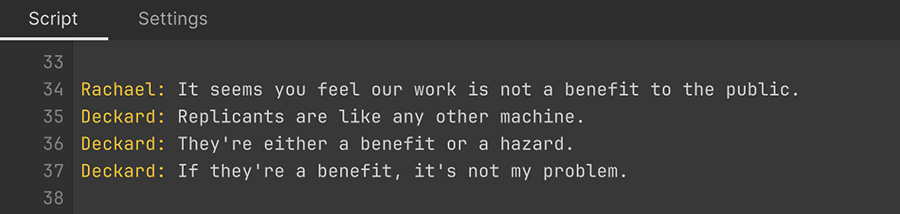
Start with text lines, then add choices and branches as the story needs them. [Language syntax](syntax.md) explains speech, choices, branches, Commands, Variables, and metadata.
### Local Compendium
Use the **Local Compendium** for definitions this Script needs on its own, such as the Actor `Darth-Vader` or the Condition `strength-check`.
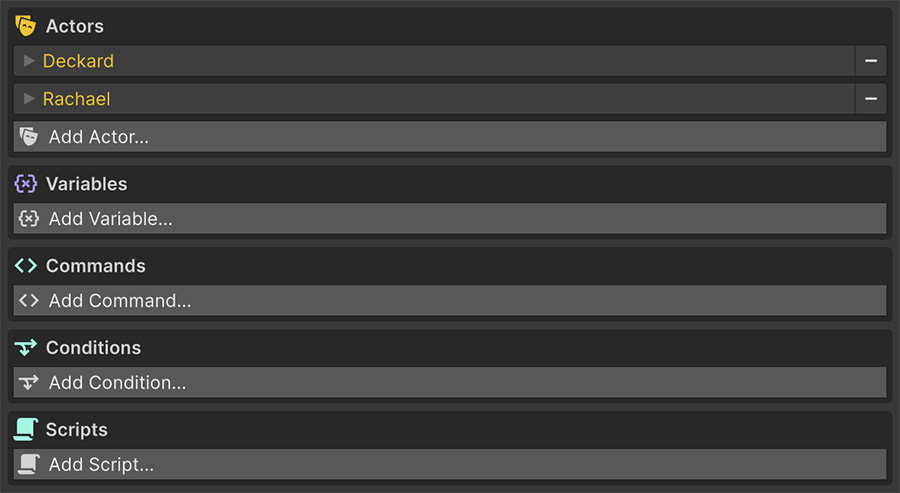
| Field | Holds |
| :--- | :--- |
| **Actors** | The characters this Script names. |
| **Variables** | The Variables it reads and writes. |
| **Commands** | The Commands it can run. |
| **Conditions** | The Conditions it checks. |
| **Scripts** | The other Scripts it can run. |
When a **[Dialogue](dialogue.md)** component resolves an identifier, it searches three locations in this order:
1. The **Dialogue** component's Local Compendium.
2. The **Script** asset's Local Compendium.
3. Every global **[Compendium](compendiums.md)** asset.
The first match wins, so a local definition overrides a global one that shares its ID.
!!! tip "Local for one-offs, global for everything else"
Use the Local Compendium for an entry that appears only in this Script. Put shared characters, currencies, and checks in a global **[Compendium](compendiums.md)** so every Script resolves the same definition.
The rule of thumb: if you'd have to define it twice, it isn't local.
### Settings
The **Settings** tab configures localization, voiced lines, text progression, and choices.
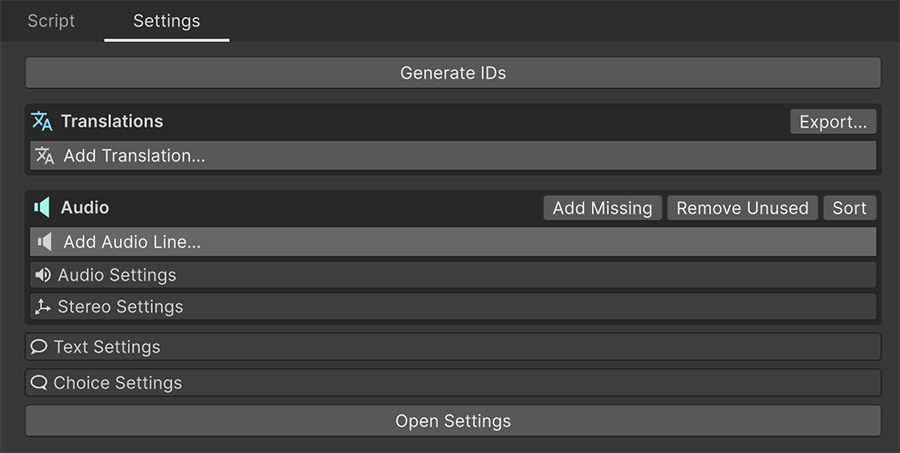
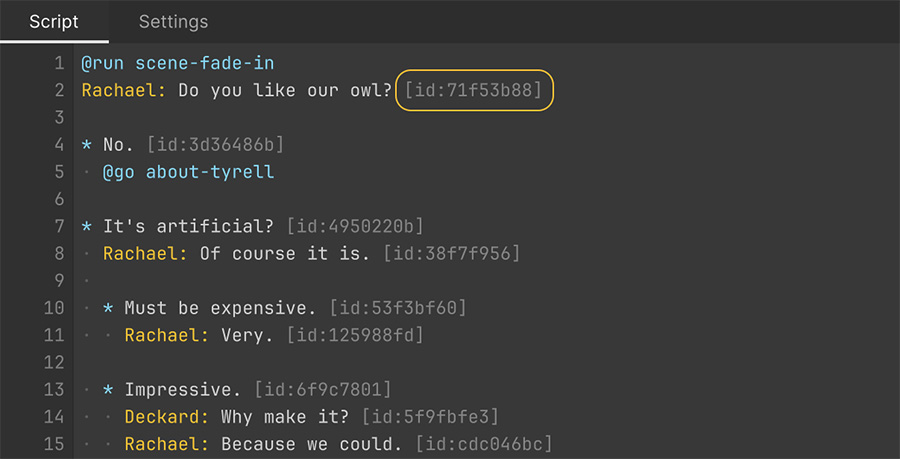
Localization and voiced lines need a unique identifier for every line. Click **Generate IDs** to add an identifier to each line that doesn't have one. It also gives every `@select` an identifier, so its [progress can be saved](syntax.md#saving-progress).
!!! info "Skip this if you don't need it"
IDs link source lines to translations and audio. If your game has one language and no voiced dialogue, you only need them on a `@select` whose progress you want to save.
The IDs appear in the Script as a metadata tag on each line.
!!! tip "Undo removes generated IDs"
Return to the **Script** tab and undo the edit with `Ctrl/Cmd + Z`.
#### Translations
Each supported locale links to a file containing the translated text.
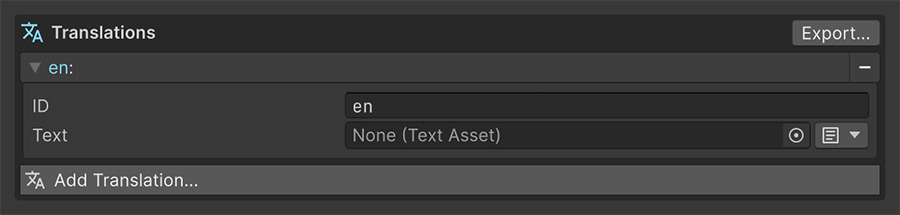
!!! info "Locales are configured globally"
Adding locales and switching between them is covered in [Localization](localization.md).
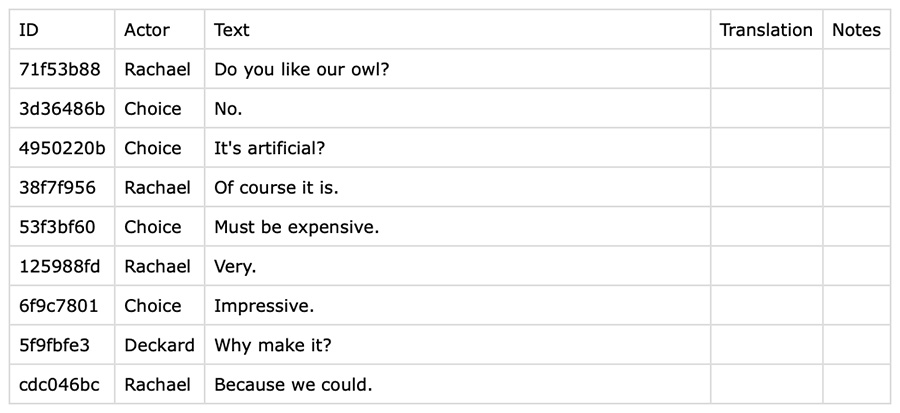
**Export…** writes every narration line to a comma-separated values (CSV) file. A translator fills in the **Translation** column without opening Unity; after import, Dialogue uses that text whenever the corresponding locale is active.
| Column | Contains |
| :--- | :--- |
| **ID** | The line's unique identifier. |
| **Actor** | The speaker, which gives the translator context. |
| **Text** | The original line. |
| **Translation** | The translated line. This column is empty on export. |
| **Notes** | Commands and comments attached to the line. |
!!! info "The language you wrote in needs no translation file"
Dialogue uses the Script's source text for the main language. You only need translation files for the other locales.
#### Voiced lines
Voiced lines attach audio clips to the same line IDs used by translations.

Add entries manually or use these buttons to synchronize the list with the Script:
| Button | Does |
| :--- | :--- |
| **Add Missing** | Adds an entry for every line that has an ID but no entry yet. |
| **Remove Unused** | Removes entries whose line IDs are no longer in the Script. |
| **Sort** | Reorders the list to match the order of the conversation. |
Voiced lines play through the **Voice** channel and use the speaking Actor's position for 3D audio.
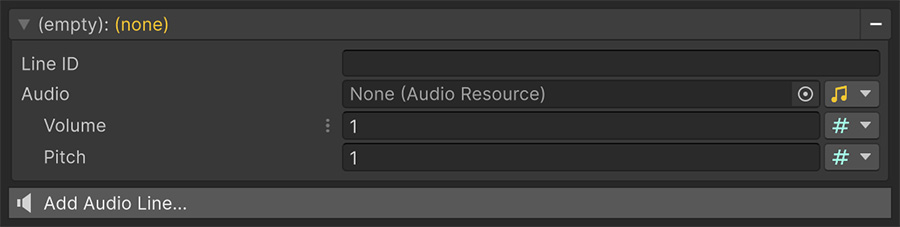
| Field | Controls |
| :--- | :--- |
| **Line ID** | The line this clip belongs to. The buttons above populate this field. |
| **Audio** | The `AudioClip` to play. A different clip can be assigned per language, for localized voice-over. |
| **Volume** | The volume for this clip. |
| **Pitch** | The pitch for this clip. |
The **Dialogue Settings** window defines project-wide audio defaults. Values in this section override those defaults for this Script.
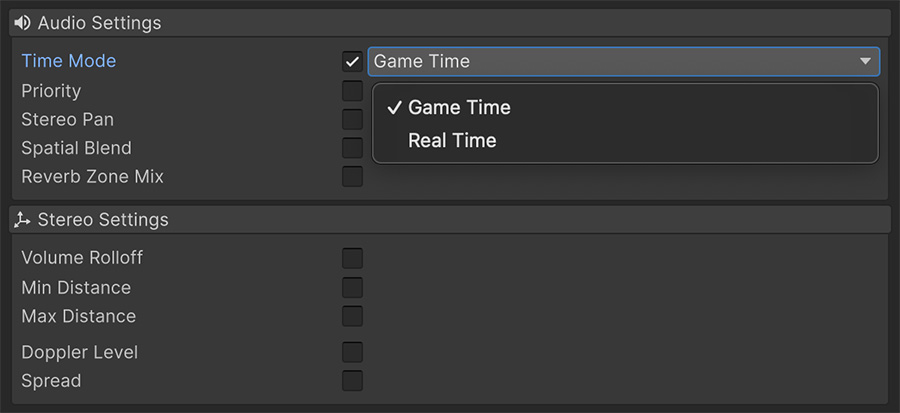
#### Choice and text options
The **Dialogue Settings** window also defines project-wide text and choice defaults. Change the values here when this Script needs different behavior.
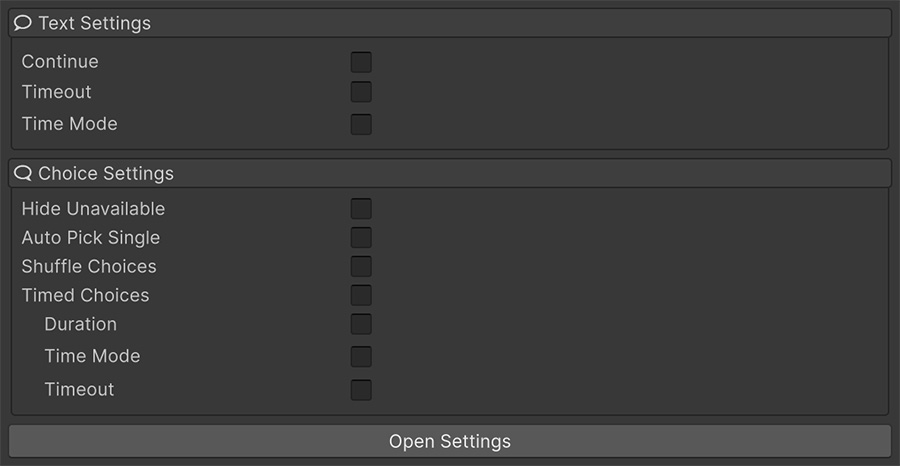
**Text Settings** decide what moves the conversation from one line to the next.
| Mode | Advances |
| :--- | :--- |
| **Interact** | When the player presses continue. The default. |
| **Timeout** | After a set number of seconds. |
| **Audio** | When the line's audio clip finishes. |
**Choice Settings** decide how a choice menu behaves.
| Field | Controls |
| :--- | :--- |
| **Hide Unavailable** | Whether unavailable choices are hidden, or shown grayed out. |
| **Auto Pick Single** | Whether a choice is taken automatically when it's the only one available. |
| **Shuffle Choices** | Whether the order is randomized each time. |
| **Timed Choices** | Whether the player is on a clock. |
| **Duration** | How many seconds they have, when **Timed Choices** is on. |
| **Time Mode** | Which clock the countdown follows. |
| **Timeout** | What happens if the clock runs out. |
Use the button at the bottom of the section to open the **Dialogue Settings** window and edit the project-wide defaults.
## Using metadata
**Metadata** is an optional set of key/value pairs in square brackets `[ ]` at the end of a line.
Use metadata when one line or choice group needs different settings, or when you want to pass a value from the Script into game logic.
### Overriding text
| Key | Value | Changes |
| :--- | :--- | :--- |
| `continue` | `0` - Interact
`1` - Timeout
`2` - Audio | What advances to the next line. |
| `timeout` | Number (seconds) | The duration for **Timeout** mode. A negative value uses the Script's default. |
| `unscaled` | `0` - Game Time
`1` - Real Time | Whether the timeout follows `Time.timeScale` or runs independently of it. |
!!! example "A dramatic pause"
Forcing one line onto a timeout holds it on screen for three seconds, regardless of the Script's default:
```dialogue hl_lines="4"
Darth-Vader: Obi-Wan never told you what happened to your father.
Luke: He told me enough! He told me you killed him!
Darth-Vader: No. I am your father.
Luke: ... [continue:1, timeout:3]
Luke: No! That's not true. That's impossible!
Darth-Vader: Search your feelings. You know it to be true.
```
### Overriding choices
Metadata on a choice line overrides the settings for the whole group it belongs to.
| Key | Value | Changes |
| :--- | :--- | :--- |
| `hideUnavailable` | `0` - Show
`1` - Hide | Whether unavailable choices are hidden or shown disabled. |
| `autoPickSingle` | `0` - Disable
`1` - Enable | Whether a lone available choice is taken automatically. |
| `shuffle` | `0` - Disable
`1` - Enable | Whether the order is randomized. |
| `timed` | `0` - Disable
`1` - Enable | Whether the group is on a countdown. |
| `duration` | Number (seconds) | How long that countdown is. |
| `unscaled` | `0` - Game Time
`1` - Real Time | Which clock it follows. |
| `timeout` | `0` - Random
`1` - First
`2` - Last
`3` - Skip | What happens when it runs out. |
When several choices in one group set the same key, the **highest value** wins for the whole group.
!!! example "Two durations in one group"
```dialogue hl_lines="4 7"
Narrator: You don't have much time!
Narrator: Quick! Decide what to do!
* Slay the Princess [duration:5]
@go slay-the-princess
* Save the dragon [duration:3]
@go save-the-dragon
```
The timer runs for five seconds — the higher of the two.
### Your own metadata
You can define your own keys as well. Your game logic can read their values through **Bool**, **Numeric**, and **String** Signals, so one Condition can work with a different threshold on each line.
!!! warning "Keys are restricted to alphanumeric characters, dashes and underscores"
Use letters, digits, `-`, and `_`. A key containing anything else, such as a space, period, or slash, is an error.
!!! example "A reusable skill check"
Creating `strength-check-8`, `strength-check-10`, and `strength-check-12` duplicates the same Condition for different thresholds. Pass the threshold to one Condition instead.
1. Pass the value from the Script:
```dialogue hl_lines="1"
@if strength-check [compare:8]
Narrator: You push the boulder aside with incredible strength.
@else
Narrator: You try to push the boulder, but it is too heavy.
```
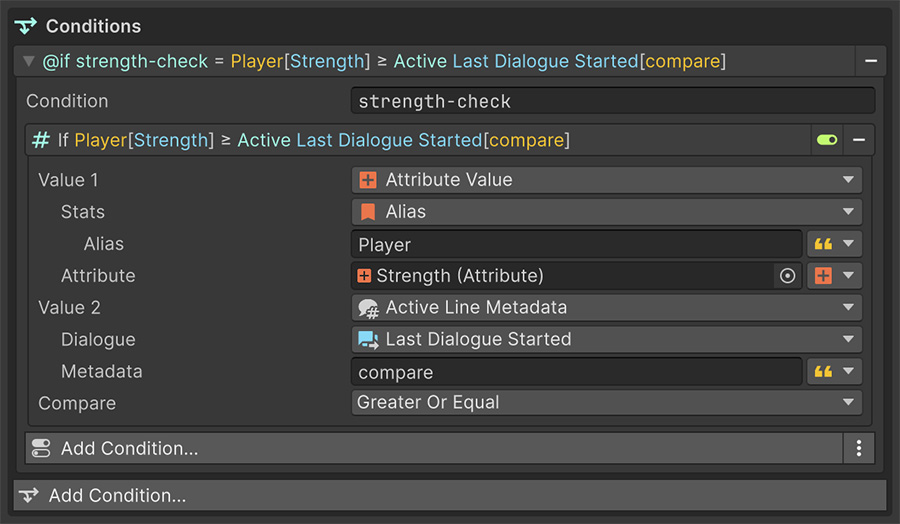
2. In a **Compendium**, create `strength-check` as a **Compare Numbers** Condition. Compare the player's **Strength** attribute with the line's `compare` metadata.
3. Reuse the Condition with a different value for each check:
```dialogue
@if strength-check [compare:108]
```
## Where to go next
- **[Language syntax](syntax.md)** — write the text, branches, and metadata stored by a Script.
- **[Compendiums](compendiums.md)** — define shared Actors, Variables, Commands, Conditions, and Scripts.
- **[Localization](localization.md)** — export dialogue text and assign translations.